
Setting up an After Hours condition in a Dialplan
This guide will explain how to setup an After Hours condition in a dialplan, that will act as a catch-all.
Scheduling
- Click Call Routing followed by Dialplans
- Next select the Dialplan you wish to edit
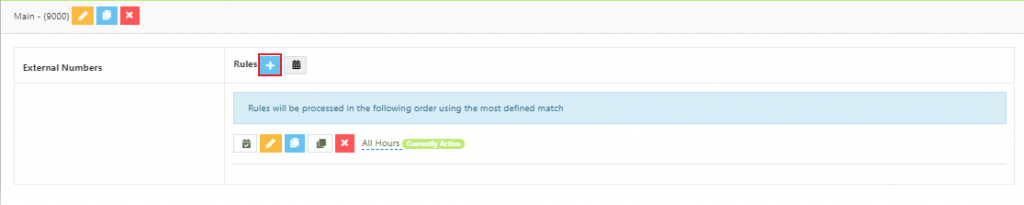
- Click the + sign next to Rules to add a new rule.
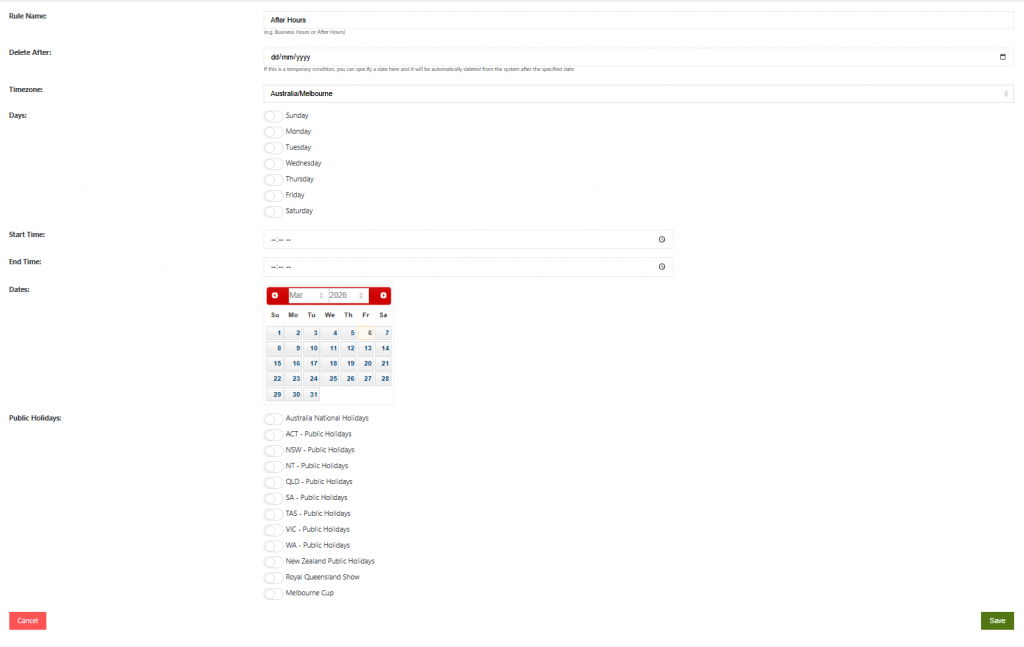
- Name the Dialplan at the top of the screen e.g. After Hours
- Select no dates, days or times for this condition – this allows it to act as a default ‘catch-all’ rule.
- Click Save to apply the current changes
- Once saved you should be moved to this screen, which shows the actions that will be taken when After Hours is active.:
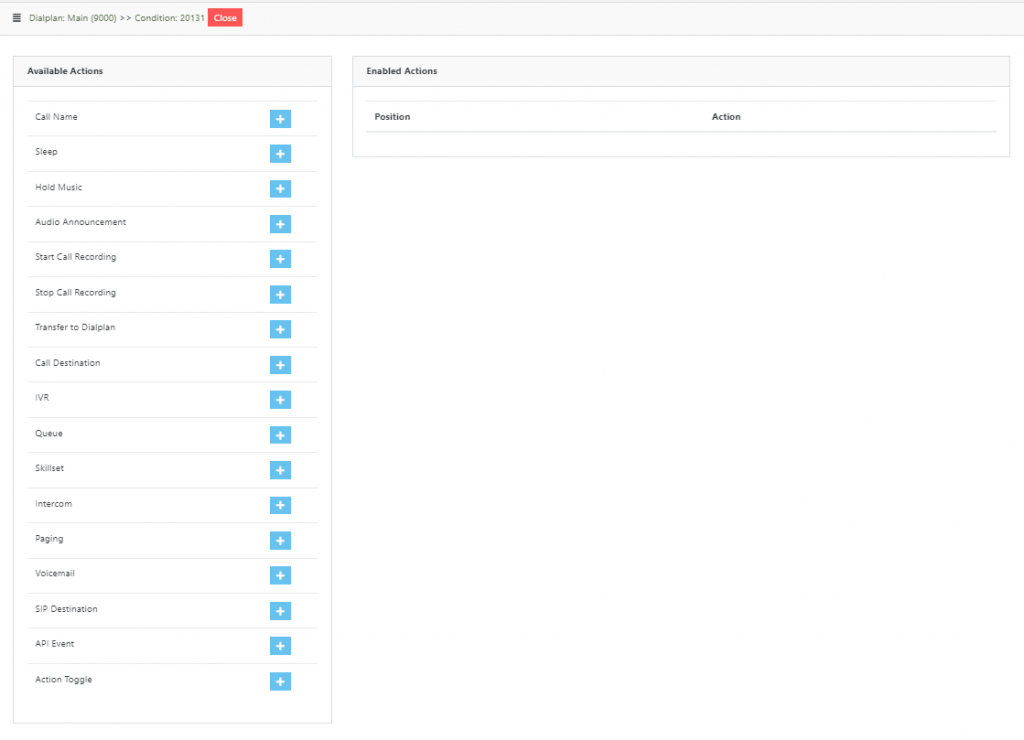
Now you can add some actions depending on what you want to happen, most commonly the Voicemail action is added by pushing the plus sign next to Voicemail

If you select Voicemail you will be presented with this page, asking you to select which extension will handle voicemails:

- Use the drop-down to select the voicemail of a particular extension or voicemail extension, then click Save.
- Now click Close

- Rename the existing ‘All Hours’ rule as ‘Business Hours’ by clicking on it’s name and updating.
- Your dialplan will look similar to this:
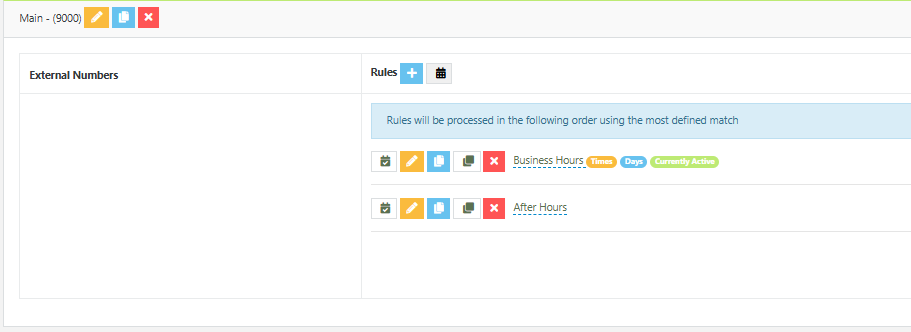
Note the Currently Active label. When your new rule is active the Currently Active label will change so you know which rule is in operation.